
Organizing Excel INVOICE Data for ERP Registration with AI
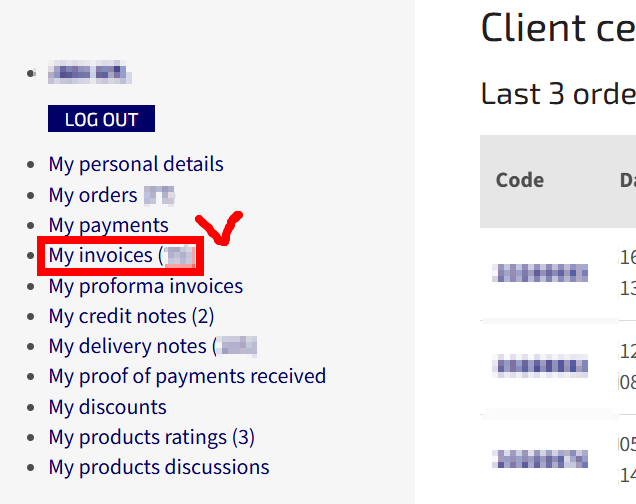
1. LOG IN
2. INVOICE CLICK and Download
3. Select 'Claude' from the AI.

The MRO Solution team tested five main AI's and obtained the most accurate and efficient output from Claude.
4. Instruct the following prompt in the new chat window
"Please create an Excel XLSX file of the invoice data I am attaching now so that I can register it in the ERP system. Please arrange the order as follows: Item Description, Code, Qty, Unit, Price after discount, Price, VAT(%), VAT, Total Price incl. VAT, and Summary. I will send you the invoices one by one. "
"내가 지금 첨부할 인보이스 자료를 ERP에 등록하기 위해서 엑셀XLSX자료로 만들어줘. 순서는 Item Description, Code, Qty, Unit, Price after discount, Price, VAT(%), VAT, Total Price incl.VAT 그리고 summary 이렇게 부탁해. 인보이스는 하나씩 보내줄께"
TIP: If you want to distinguish specifications such as size or color within the ERP system, you can add those details when initially setting up the command to receive more detailed information in the Excel file.
5. Attach the downloaded invoice PDF file and click the Run button.
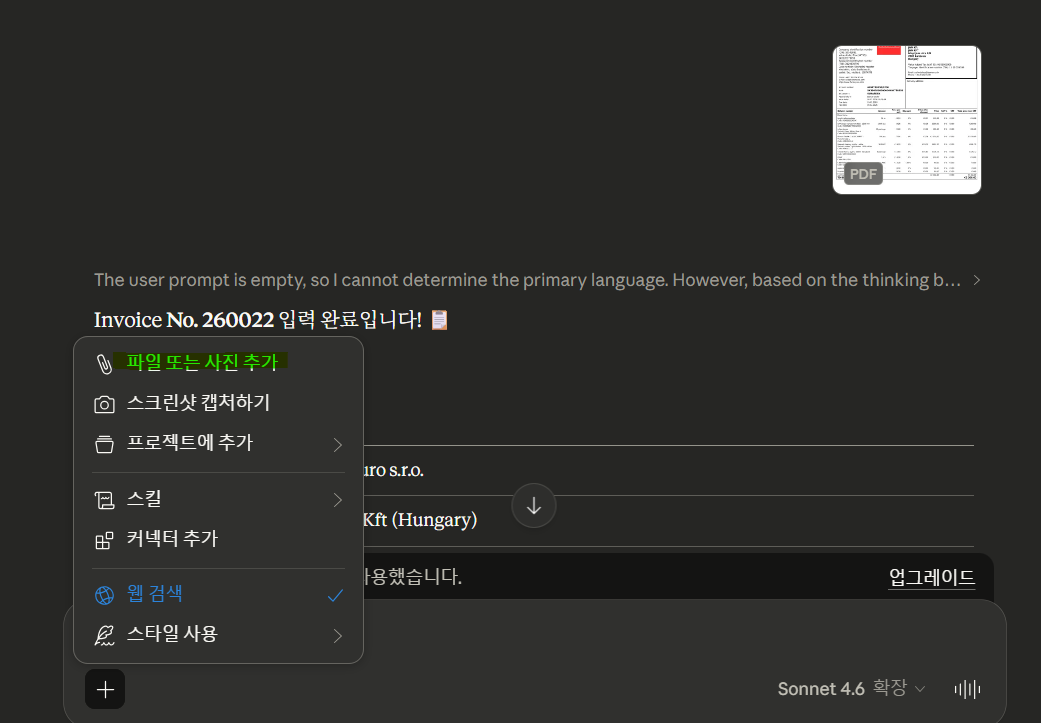
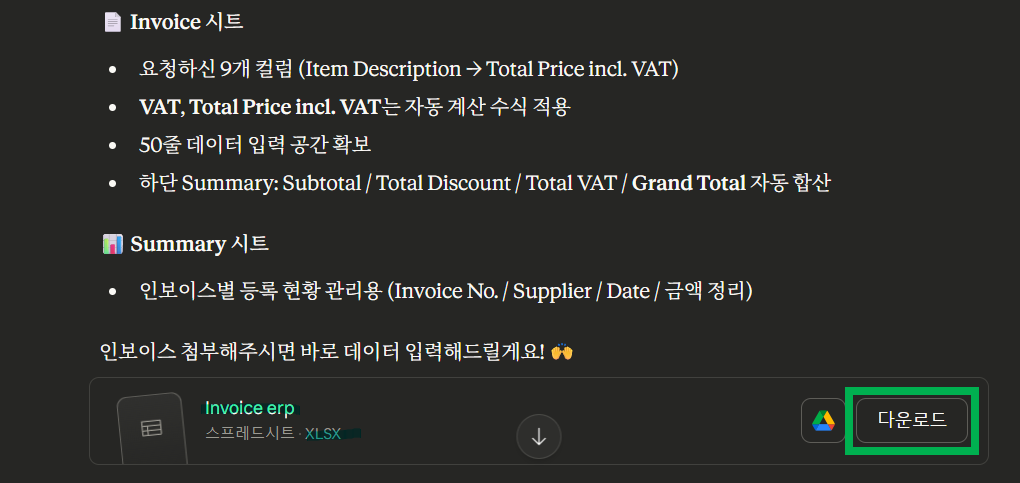
6. You can download the organized Excel data converted into Excel format.
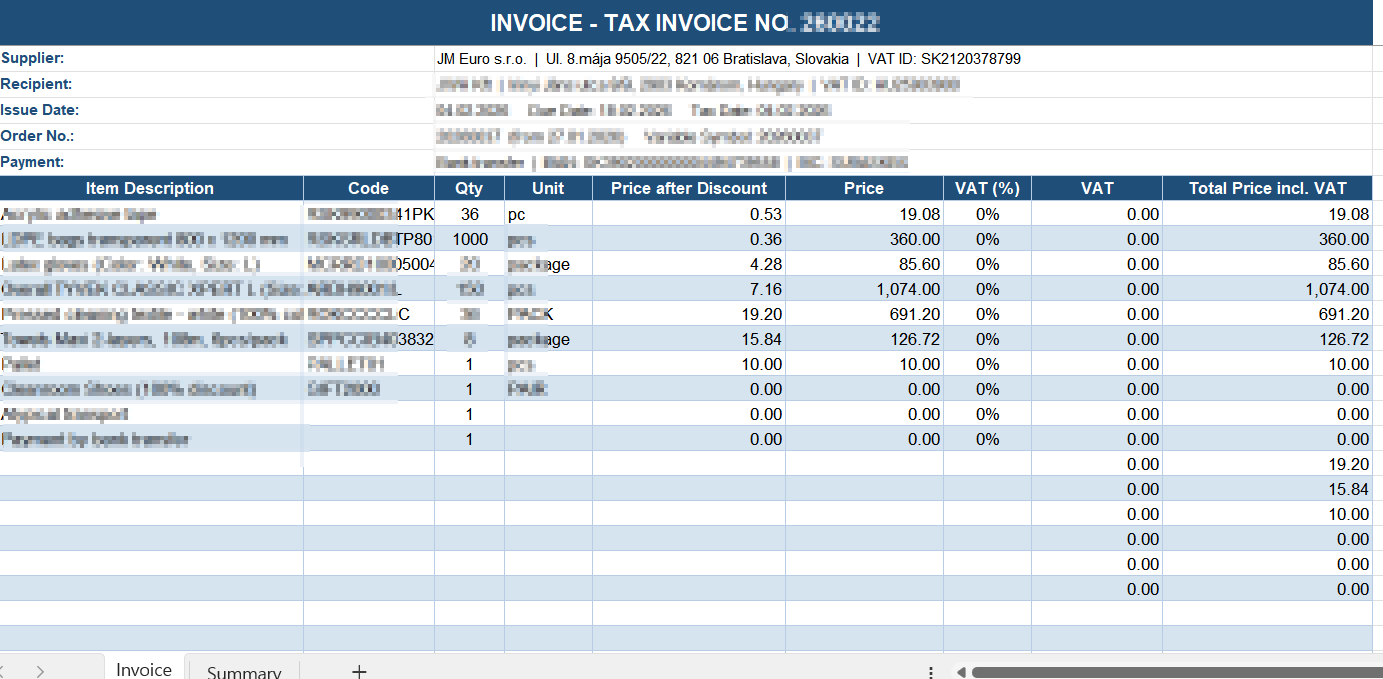
7. If you run the command with additional invoice attachments, you can download the organized Excel data as shown below.
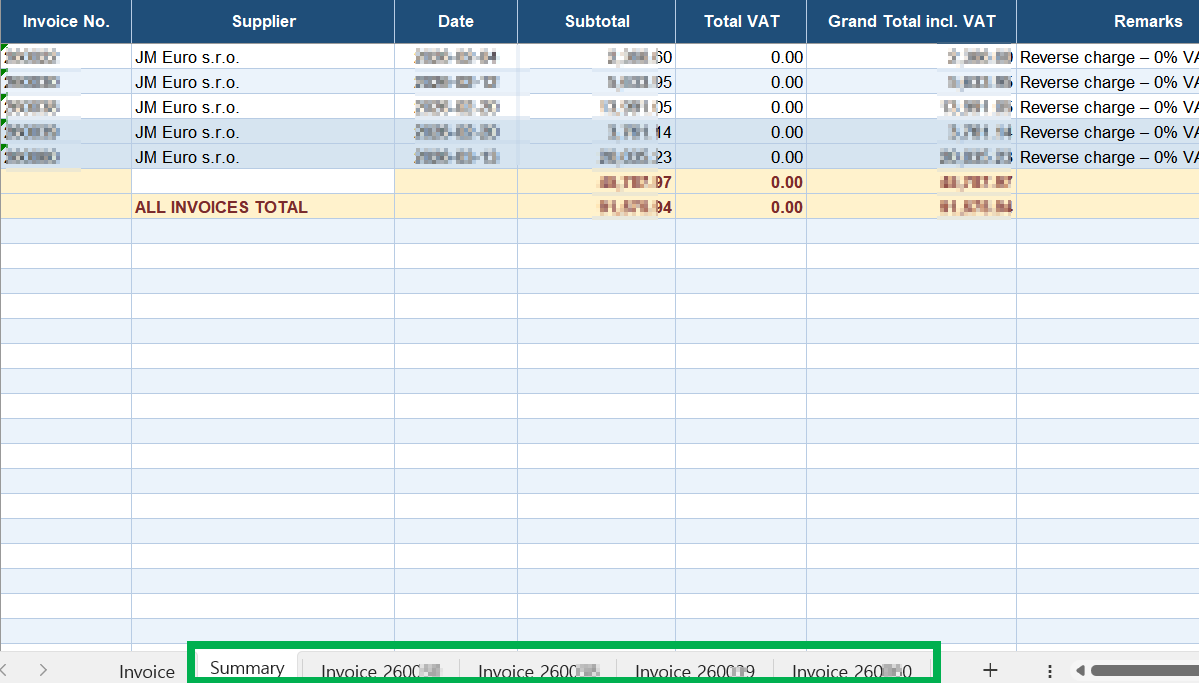
Special Note: Verification shows that you can organize at least 5 to 7 invoices(PDF) in about 4 hours using a free token.